
Self-hosting
Overview
Self-hosting means you install Tinode on your own server(s) and manage it yourself. We provide support for self-hosted intallations in the following ways:
- TnAdmin, an interactive GUI tool for server administration.
- Simplified configuration of push notifications for your mobile and web applications with Push Gateway (TNPG).
- Production monitoring: Grafana monitoring dashboard with basic statistics of your production cluster.
- Automatic connection configuration for your mobile apps: the apps will either come preconfigured for your server, or can be configured by scanning a QR code, or by entering a short code.
- Custom Branding of your mobile apps: the apps display your name and logo.
- Dedicated technical support.
All services are provided through console.tinode.co. These steps are required for any service:
- Register or sign in at console.tinode.co, if you have not done so already.
- Create an organization: Setting → User → Organization membership,
[+add]button. - Make sure the organization is selected in the drop down box on top of the screen.
Pricing
Feature Basic Professional Enterprise Price Free † from $50/month ‡ see here Push Gateway (TNPG) ✓ ✓ ✓ Monitoring ✓ ✓ ✓ TnAdmin ✓ ✓ Auto-configuration ✓ ✓ Branding ✓ ✓ Dedicated support ✓ † Free for small teams. The team is considered small if it sends no more than 500 push notifications per day (roughly equivalent to 350 messages per day).
‡ $50 per month for a standalone installation ($500 when billed annually), $25 per month for each additional cluster node ($250 when billed annually).
How it works
TnAdmin tool
TnAdmin is an interactive web application which provides visual controls for most common administrative tasks, such as looking up a user, resetting passwords, suspending users, viewing and reacting to user complaints, etc.
TnAdmin is provided as a docker container that you can run on your server(s) or workstations. TnAdmin requires a license key to run. The key is provided in the console.tinode.co.
Simplified push configuration
Generally speaking, if you want to run your own installation of Tinode and plan to use mobile apps, you cannot use stock Tinode iOS and Adroid apps because push notifications won't work and your users will have unsatisfactory experience. You normally would have to create your own versions of mobile apps and publish them to Google Play and Apple App Store, then setup push notifications.
If you cannot or do not want to build your own mobile apps, you can use stock Tinode apps with your server and still send and receive pushes with help of TNPG (Tinode Push Gateway):
- Login in to console then use menu option Push Gateway to obtain a TNPG token.
- Configure your Tinode server or cluster with the token. See detailed instructions.
Production monitoring
We provide you with an option to set up a Grafana monitoring dashboard to monitor health of your production cluster. The dashboard comes preconfigured for basic statistics:
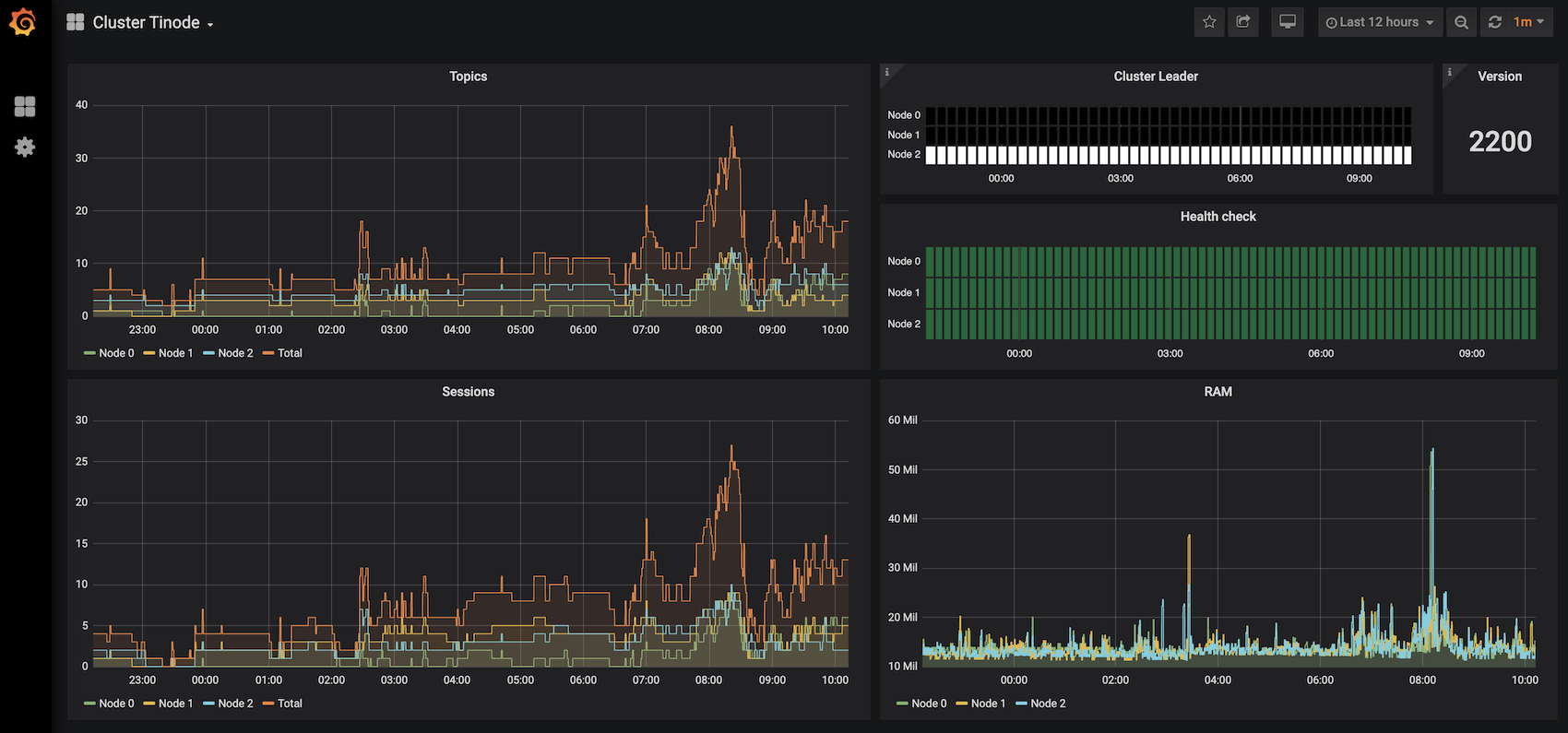
- Choose menu option Monitoring in the console, then click [ENABLE] button to initialize your dashboard.
- Configure your server with the
influxdbexporter token. See detailed instructions. - The automatically generated token expires in 3 months. You may want to create and use a token with longer expiration time.
- Dashboards are automatically removed after 30 days of not receiving data.
Automatic Connection Config and Custom Branding
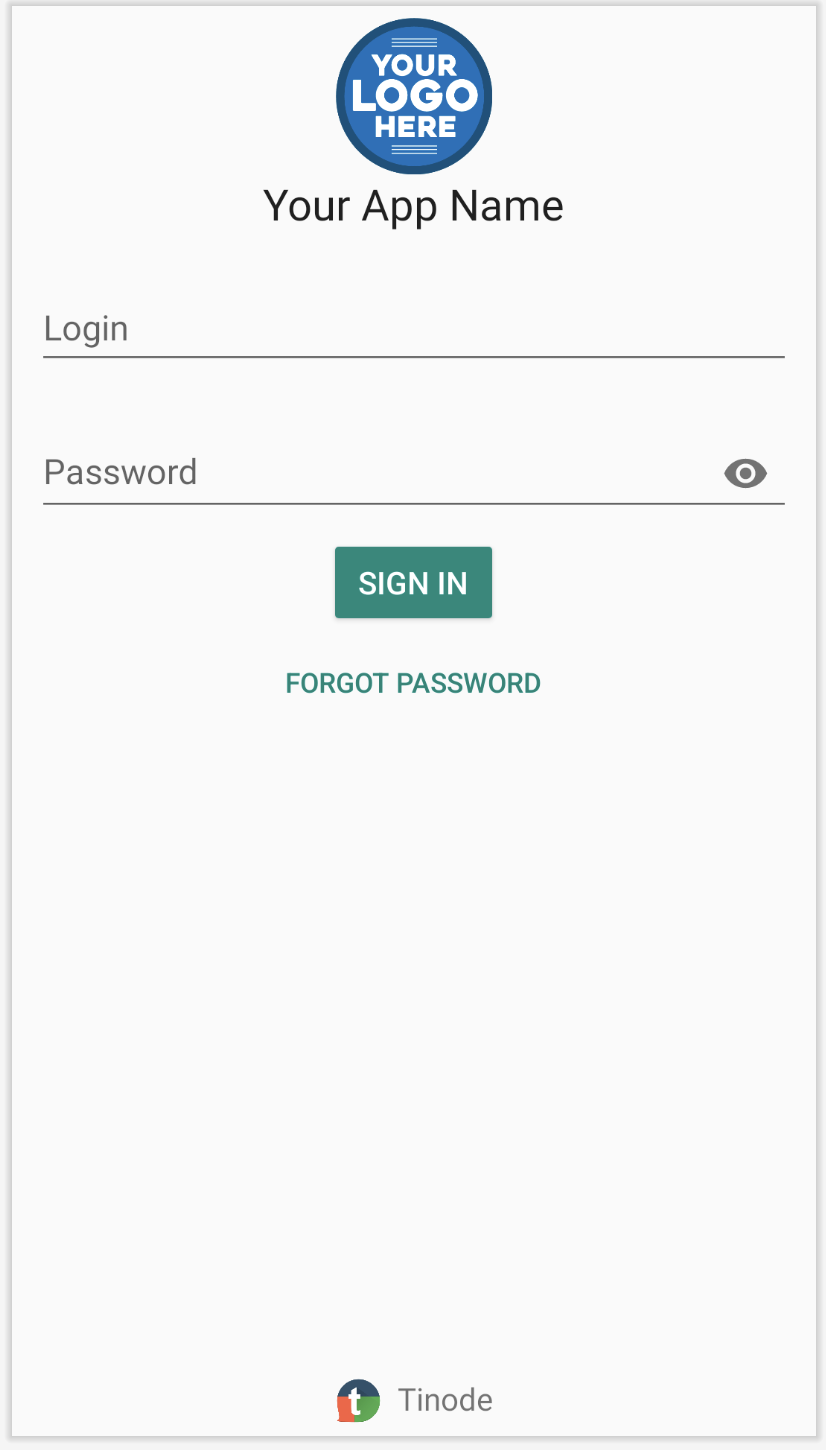
These options simplify how your customers use Tinode mobile apps with your server. They provide ways to automatically configure connection parameters (users do not have to enter them manually), and to show your logo and brand name in place of Tinode logo and name on Login and About screens. For technical reasons, the laucher icon cannot be changed.
Your users can configure Tinode mobile apps in one of the three ways:
- Completely automatically: place the mobile store link provided in the console on your web site. When clicked, the link takes your customer to Tinode page in Google Play or Apple App Store (it auto-detects iPhone or Android and redirect to appropriately). The user downloads and installs the app, and the app automatically comes pre-configured to use your server and your name and logo. It almost always works for Android but not fully reliable for Apple because Apple intentionally makes it difficult.
- If the app fails to automatically configure for your service, ask your users to either scan a QR code or enter a short code with their Tinode app. The short code and the QR code are provided in the console.
Follow these steps to configure the service:
- Select the Mobile Config menu option in the console and follow instructions to configure the service, then make a payment.
- Once the payment is received and the service is configured, the mobile store link, the short code, and the QR code will be activated. Place them on your web site and explain to your customers how to use them.
- The link, short code, and QR code won't work until the service is paid for. Use the Billing link in the console to set up payments.